View and load employees
Goal
Browse the employee list and load people into the system — which is done by Excel import, not an in-app form.
Who can do this
- View:
employee.view— Planner, Manager, Supervisor, HR Administrator, Viewer, System Administrator. - Bulk import:
imports.run— System Administrator, HR Administrator, Planner.
Before you start
- An
.xlsxmatching the import template (employees + skills + certifications sheets), ≤ 10 MB.
Steps
- Open Employees (
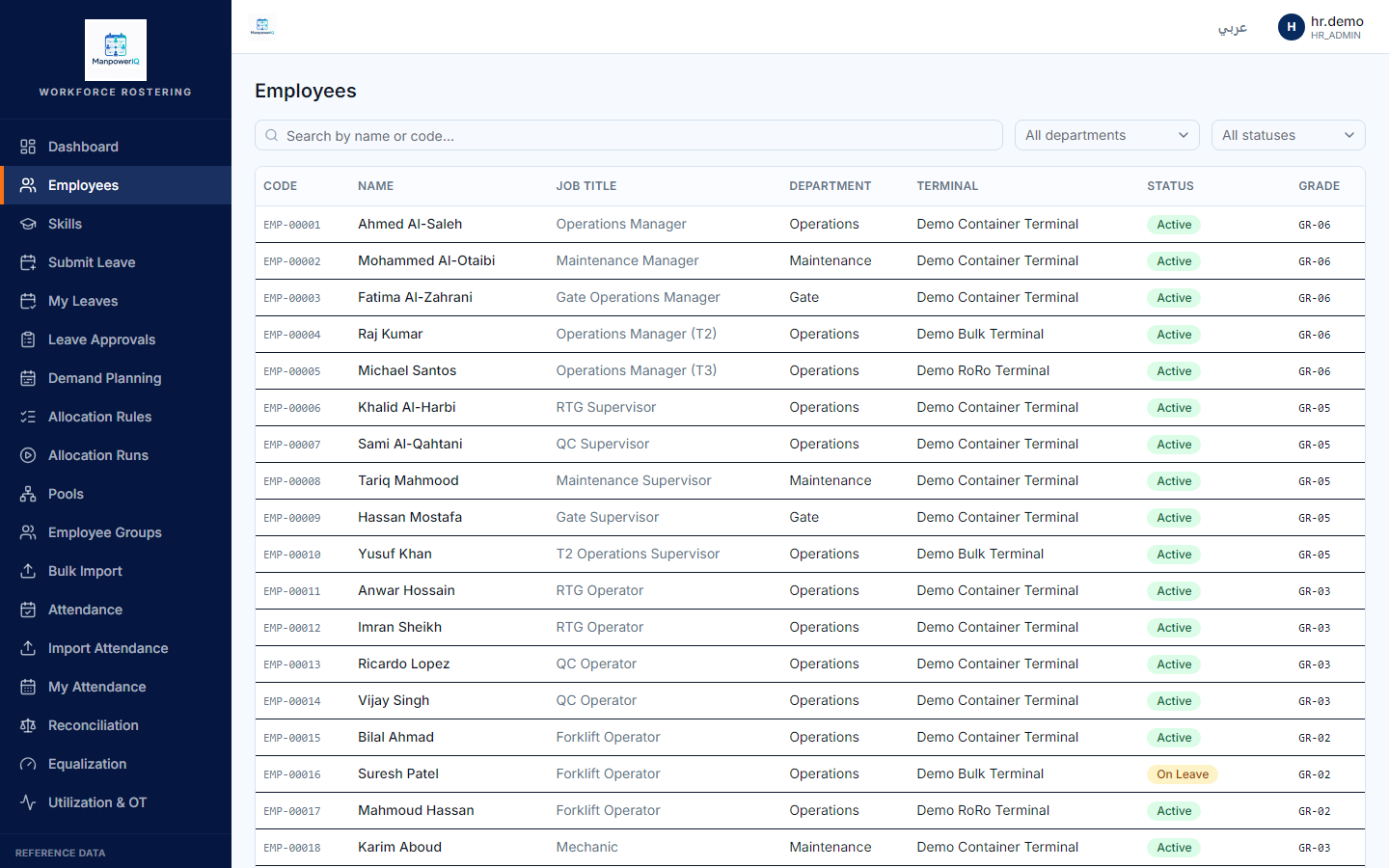
/employees) to browse — code, name, job title, department, terminal, status, grade.
- To load or update people, open Imports (
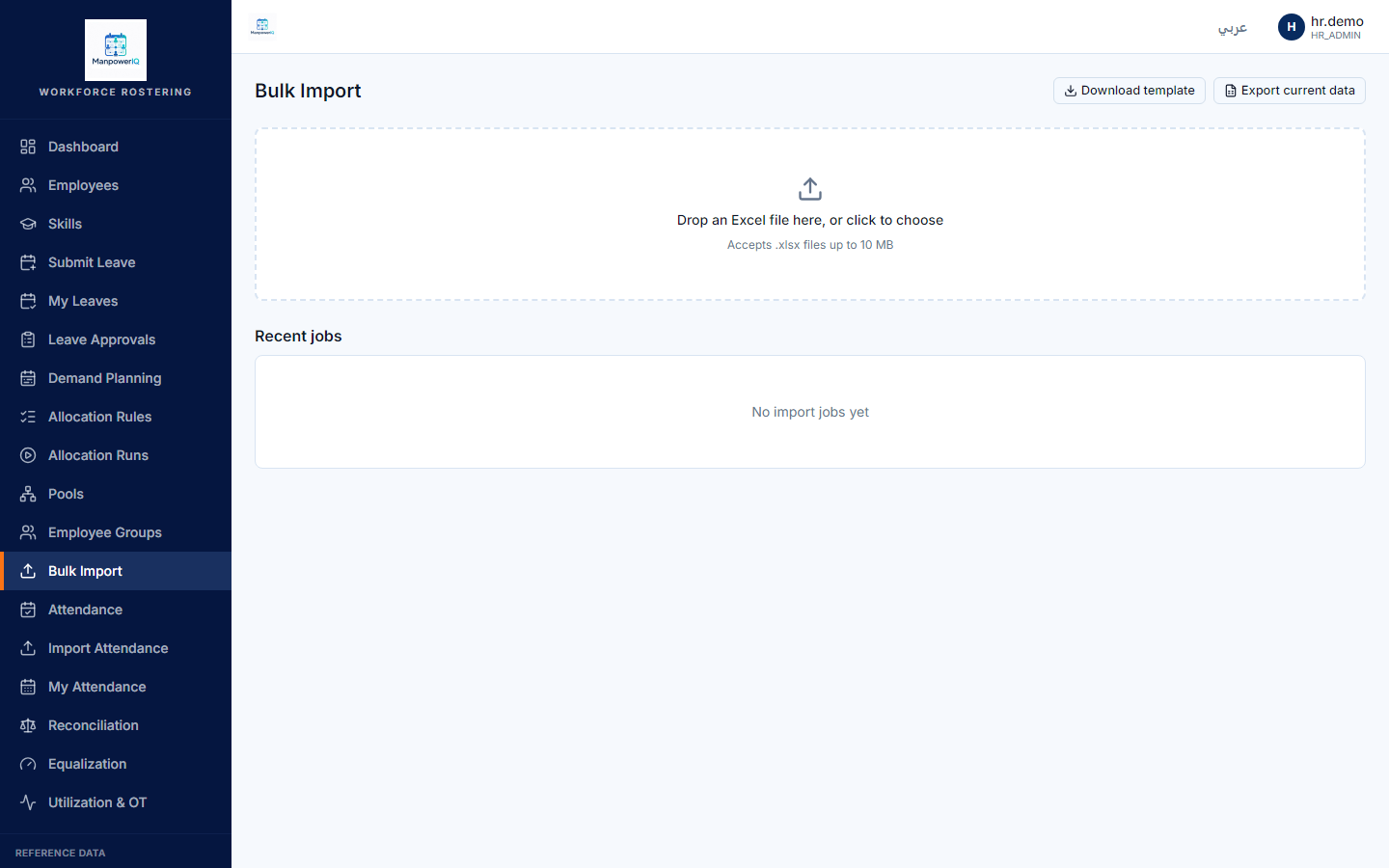
/admin/imports), Download template (or Export current data), fill the.xlsx, then upload it. The file is validated, processed as a background job, and any rejected rows come back as an Excel error report.
What the system does
Employees are import-only. There is no "add employee" or "edit employee" form in the app — creating and updating people (and their skill/cert rows) flows entirely through the bulk Excel import. The catalogs themselves (skills, certifications) are editable, but per-person records are loaded by import. See Employees & skills.
What can block you
- No in-app create/edit — don't look for an "Add employee" button; it doesn't exist (import-only).
- Import validation:
.xlsxonly, ≤ 10 MB, expected sheets/headers; the file isn't stored on disk. - Skill assignment also has no screen — employee↔skill rows come from the same import, not a UI.